|
Create Virtula Machine
|
| Create Virtula Machine. This example show to install Debian Lenny.
Desktop Environment is needed.
|
|
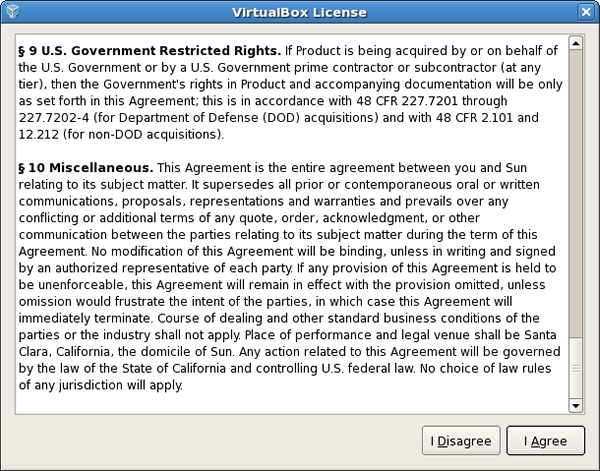
| [1] | Open 'System tools' - 'Sun VirtualBox', then following screen is shown. Agree license agreement first. |
|
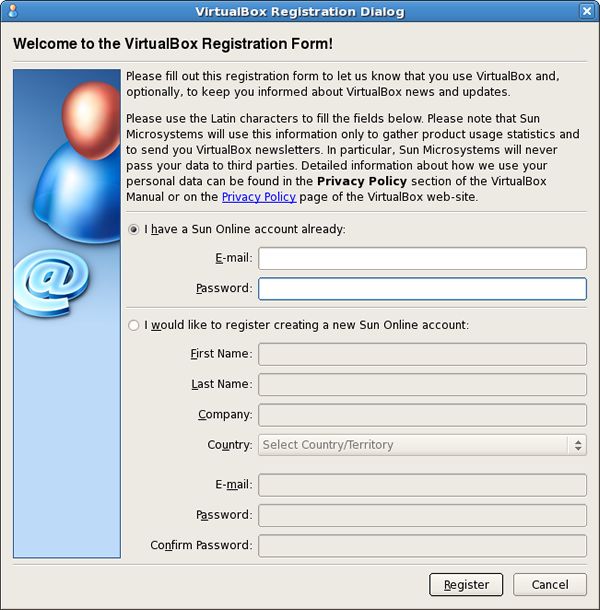
| [2] | Input your registration information. |
|
| [3] | Click 'New' button. |

|
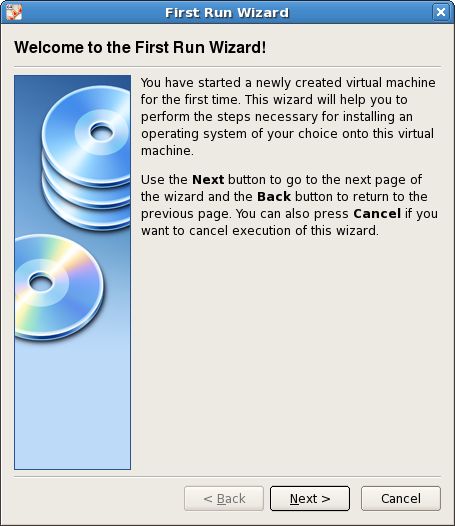
| [4] | Go next. |
|
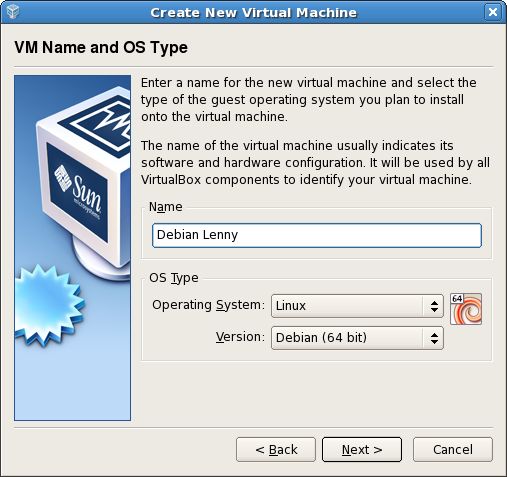
| [5] | Specify the name and OS type for Virtula Machine. |
|
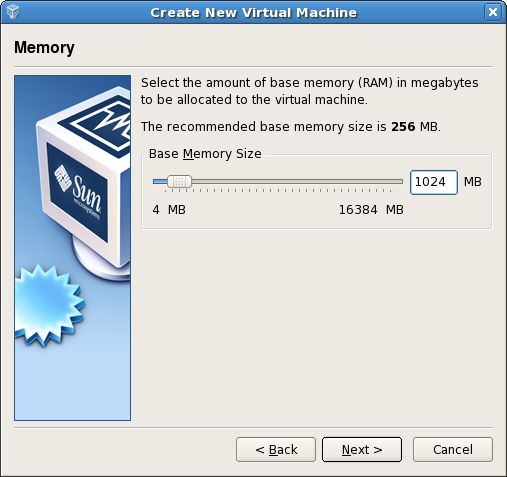
| [6] | Specify amount of memories. |
|
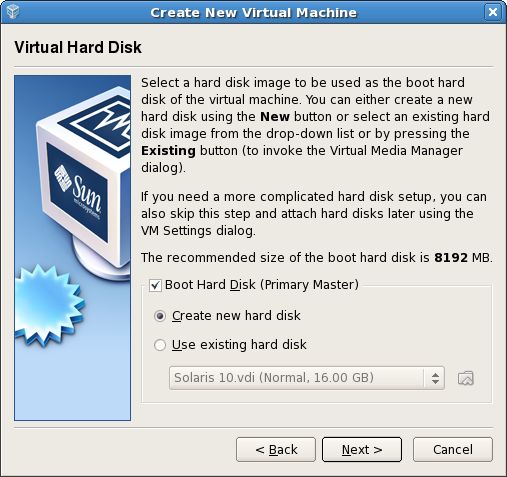
| [7] | Specify virtula disk. It's new on here, so Go next by default. |
|
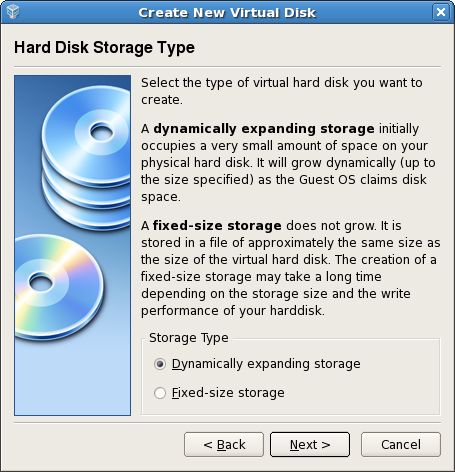
| [8] | Select disk type. |
|
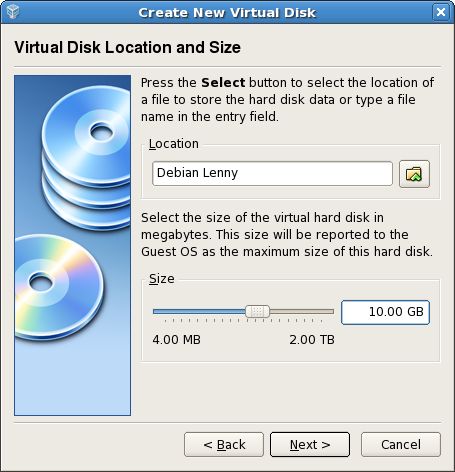
| [9] | specify the name and mount of disk. |
|
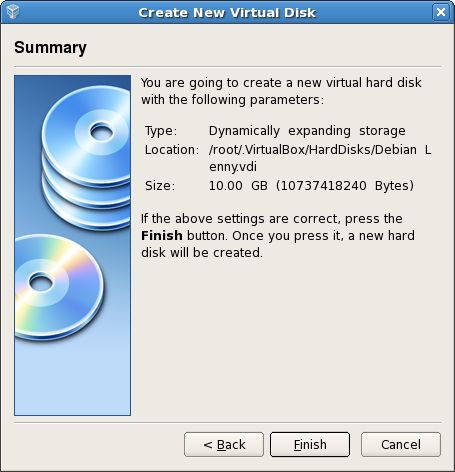
| [10] | Click 'Finish'. |
|
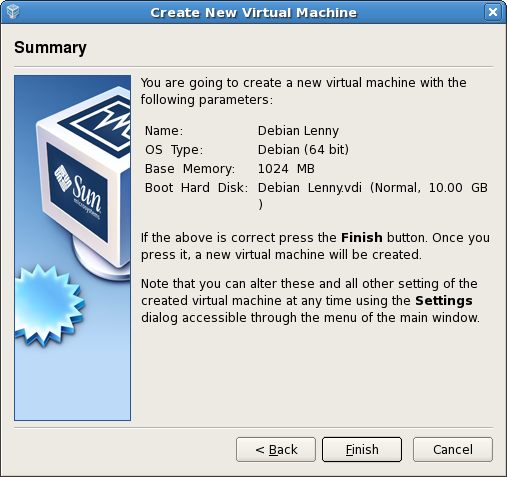
| [11] | Click 'Finish'. |
|
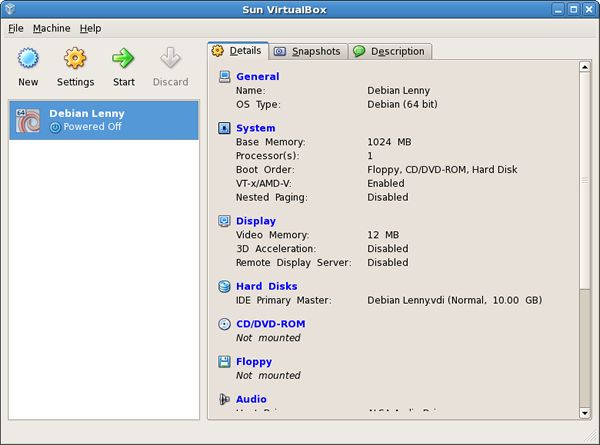
| [12] | Click 'CD/DVD-ROM' because install from it on here. |
|
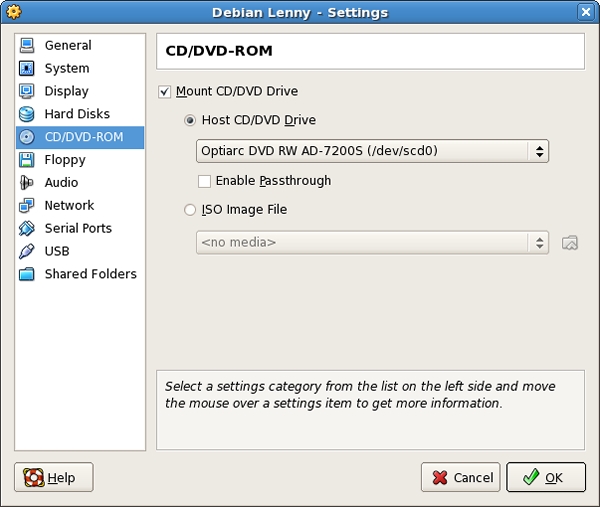
| [13] | Check a box 'Mount CD/DVD Drive' and OK. |
|
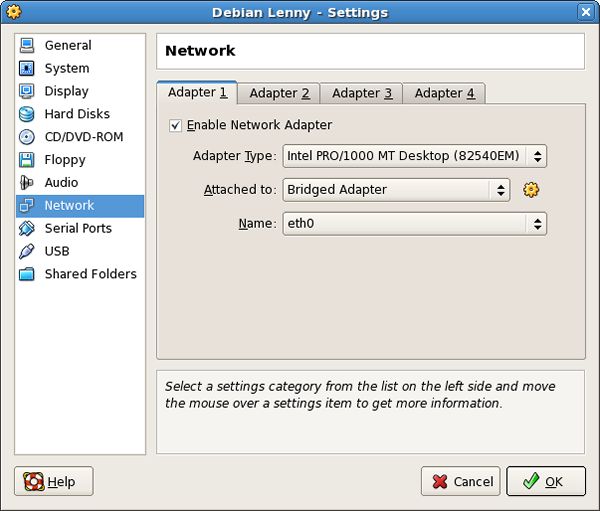
| [14] | Back to the screen [12] and click 'Network', then select 'Bridged Adapter'. |
|
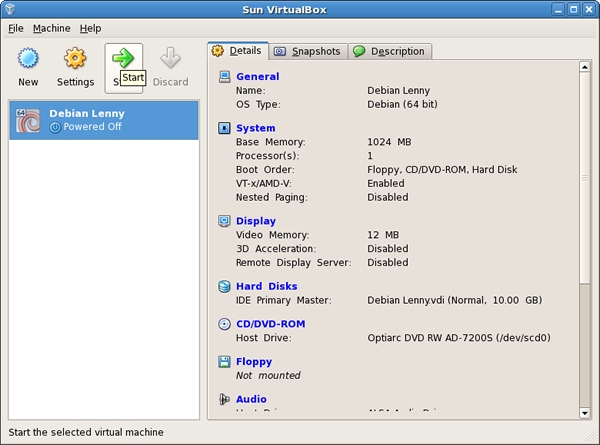
| [15] | Click 'Start' button. |
|
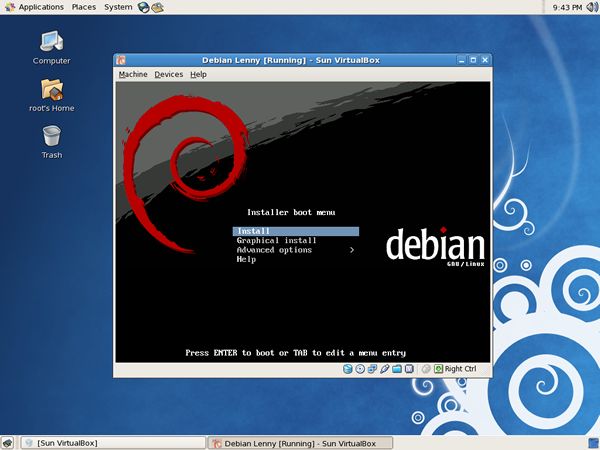
| [16] | Virtual Machine starts and Installer runs. |
|
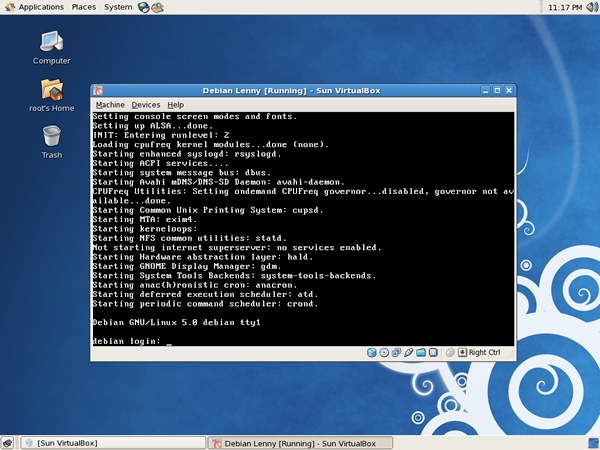
| [17] | Installation finished and Debian Lenny is running. |
|